
How to Add a New User
Only users with the Administrator role can add new users and manage their access to the Merchant Dashboard.
Follow these steps to create a new user:
Step 1. Open User Management
Log in to the Ayoconnect Merchant Dashboard.
From the sidebar, navigate to Settings (Pengaturan) → User Management (Manajemen Pengguna).
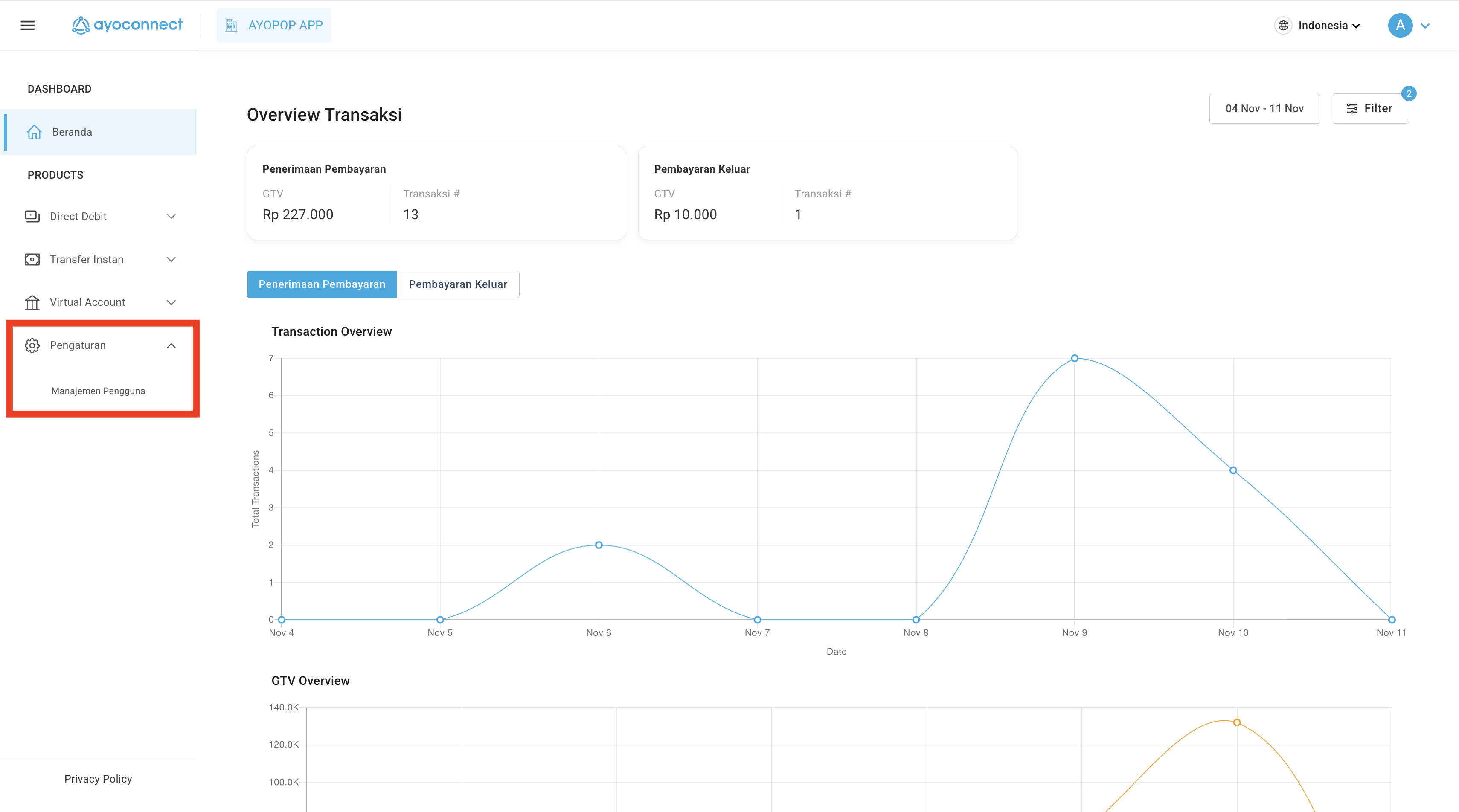
Screenshot 1. User Management navigation
Step 2. Select the Product
Select the product for which you want to manage user access from the Product dropdown.
User roles and access permissions are managed according to the selected product.
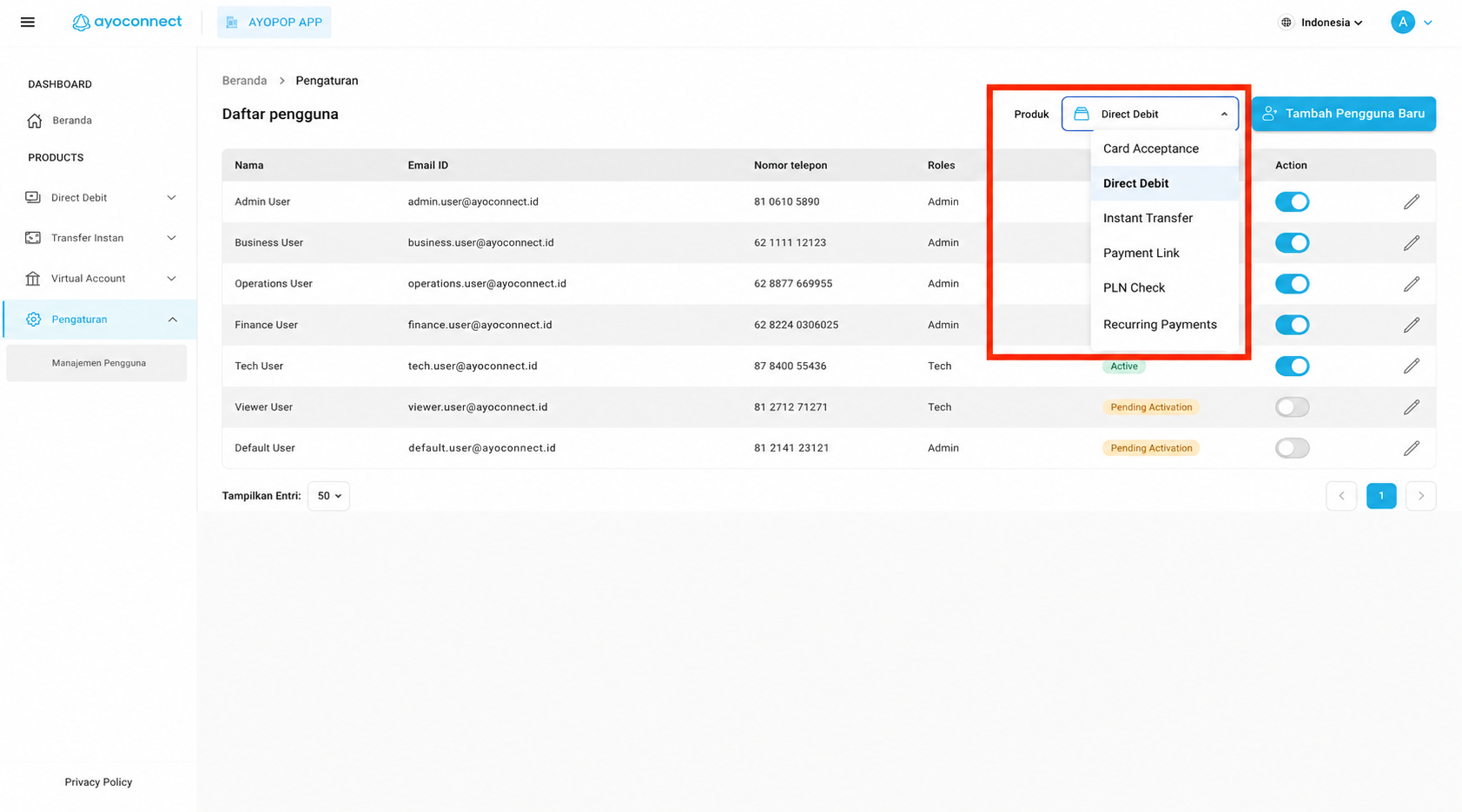
Screenshot 2. Product selection
Step 3. Add a New User
Click Add New User (Tambah Pengguna Baru) to open the user registration form.
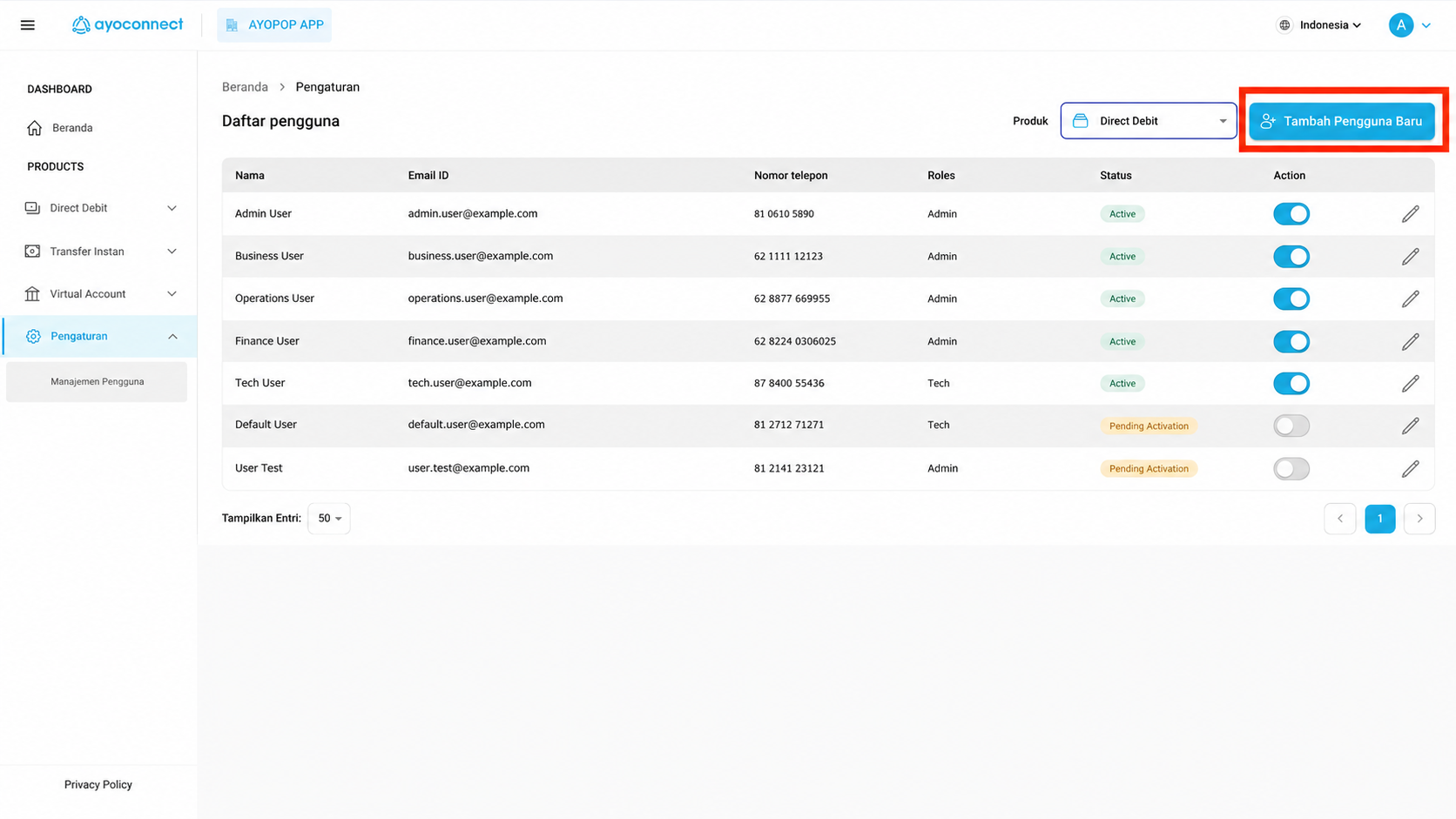
Screenshot 3. Add New User button
Step 4. Enter User Information
Complete the following fields:
- Full Name: User's full name.
- Email Address: User's email address.
- Mobile Number: User's registered mobile number.
- Role: Select the appropriate role based on the user's responsibilities.
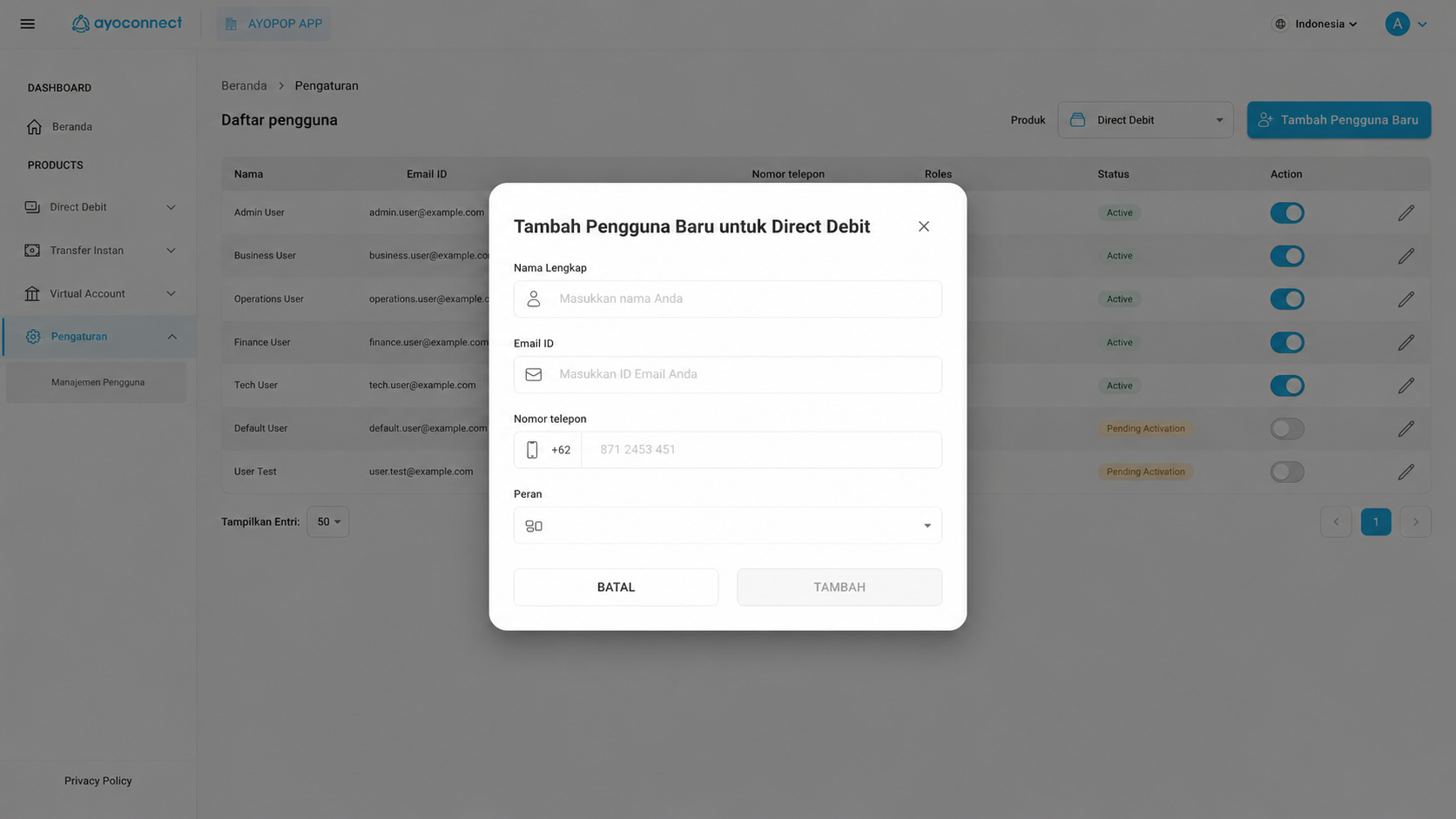
Screenshot 4. New User form
Step 5. Assign a Role
Select one of the available user roles:
- Admin
- Business
- Operations
- Finance
- Tech
- Default
Each role has different permissions within the selected product.
For Bulk Disbursement, Operations acts as Maker, while Finance acts as Checker.
Click Add (Tambah) to submit the new user.
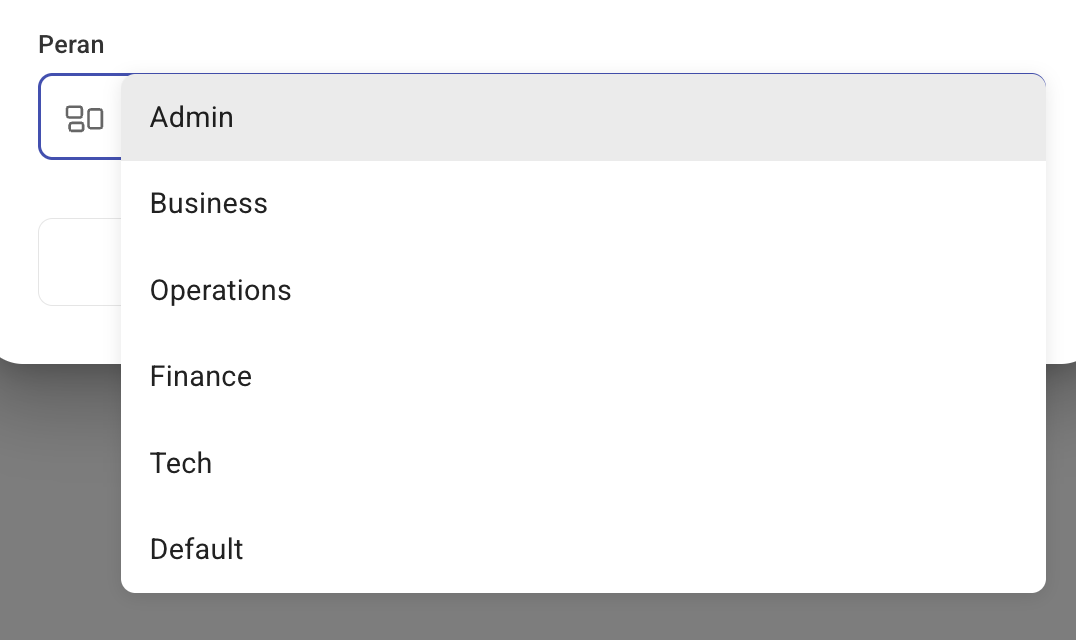
Screenshot 5. Role selection
Managing Existing Users
Administrators can manage existing users through the User Management page.
Available actions include:
- View Users: Review registered users, assigned roles, and account statuses.
- Edit Users: Use the edit icon to modify available user information or roles.
- Manage User Access: Use the available status toggle to enable or disable user access.
- Check Activation Status: Review whether a user is Active or Pending Activation.
Important Notes
- Only authorized Administrators can manage users.
- User permissions depend on the selected product and assigned role.
- Operations (Maker) and Finance (Checker) must be assigned to separate users for Bulk Disbursement approvals.
- Administrator users cannot initiate or approve transfers under the Instant Transfer access matrix.
Updated 16 minutes ago